Whether it’s on YouTube, an online educational course, during a meeting or interview or on a podcast, video is all around today. Video is efficient in information but also inefficient to deal with. It is not easily scanable, easy to locate specific ideas or ideas, or can be reused without having to rewatch significant parts of it. This is why the number of people who are beginning to convert video to text is increasing. You can convert what you hear to written words, which can be searched, edited and used.
Tools like convert video to text, transcribe YouTube video to text, or even YouTube video transcription are quickly becoming important for creators, students, and teams who work with a considerable amount of video material. However, it is important to not just convert video to text through any simple online application. Most transcripts remain long and poorly structured, and not suitable for use in practical workflows. This information not only covers conversion, but also the process of structuring and utilising video to text. It enables you to do more than just consume video content but actively use it, which is much more useful in reality.
Part 1: The Core Problems of Converting Video to Text
Before looking at specific tools or workflows, it helps to understand why video is difficult to work with in the first place. The problem is not only that the video takes time to watch. It is that video keeps information locked in a fixed, linear format, which makes it hard to search, edit, summarize, quote or reuse when real work starts.
Why Linear Content Breaks Down in Real Work
When you convert video to text, the output is usually a long, linear transcript that follows the exact flow of speech. While this preserves all information, it does not match how people actually use content in real scenarios.
In practice, most workflows are non-linear. People need to:
- Jump directly to specific ideas or answers
- Scan quickly instead of reading everything
- Compare insights across multiple videos
- Extract only the most relevant parts
A linear transcript makes all of this harder. Even if you transcribe video to text with high accuracy, the structure still limits usability.
Key limitations of linear transcripts:
- No quick navigation → You cannot easily skip to key sections
- Poor comparability → Difficult to analyze multiple sources side by side (e.g., when you convert youtube video to text)
- No modular structure → Ideas are buried in paragraphs instead of separated
- Low reuse value → Hard to extract and repurpose content
For example, after doing YouTube video transcription, you may still spend more time searching within the text than actually using it. The content exists, but it is not accessible.
The problem is not lack of information, but lack of structure.
The Hidden Cost of Raw Transcripts
Using tools to convert video to text online or transcribe video free often feels like a productivity upgrade. But raw transcripts can actually create new friction.The biggest issue is information overload without hierarchy. Everything appears equally important, which makes it harder to identify what matters.
Common problems with raw transcripts:
- No hierarchy → No headings, no prioritization of ideas
- No entry points → You don’t know where to start reading
- Repetition and noise → Filler words and redundant sentences reduce clarity
- Cognitive overload → Too much unstructured information at once
This leads to a key outcome: slower decision-making.
Instead of helping you move faster, transcripts force you to:
- Manually organize information
- Re-read large sections
- Interpret meaning on your own
Even with advanced convert video to text ai tools, if the output remains unstructured, the core problem remains unsolved.
In short, simply converting video to text does not improve productivity. Without structure, it only changes the format, not the usability.
Part 2: Content Compression vs Expansion: Summaries vs Repurposed Content
After you convert video to text, most people focus on just one outcome, usually summaries. But in reality, there are two important ways to work with transcripts: compression and expansion. Understanding both can greatly improve how you use video content.
Compression (Make Content Shorter and Faster to Use)
Compression means reducing content to its most essential parts. When you transcribe video to text, you often get a large amount of information. Compression helps you filter out what matters.
Common forms of compression include:
- Summaries → short overviews of the content
- Key points → main ideas extracted from the transcript
- Bullet insights → quick, scannable takeaways
This is especially useful when:
- You want to review content quickly
- You need fast answers
- You are working with long videos (like YouTube video transcription)
Compression helps you save time and reduce information overload.
Expansion (Turn Text into Deeper Content)
Expansion is the opposite process. Instead of reducing content, you build on it.
After you convert video to text ai, you can:
- Turn transcripts into full blog articles
- Add examples and explanations
- Provide context and structure
- Connect ideas into a clear narrative
For example:
- A transcript → SEO article
- A lecture → detailed study guide
- An interview → structured report
Expansion increases the value of your content and makes it usable for publishing and sharing.
Why Both Matter
Both approaches are essential, and they serve different goals:
- Compression → speed (quick understanding)
- Expansion → depth (deep learning and content creation)
The problem is that most tools that convert video to text online only focus on one side, usually summaries. They help you compress content but don’t support deeper content creation.
A complete workflow should support both compression and expansion.
For example, tools like Clipto.AI combine both layers. With AI summaries, you can quickly compress long transcripts into key insights. At the same time, AI chat allows you to explore the content further, ask questions, find specific details, and expand ideas whenever needed. This means you’re not locked into one format, you can move from quick understanding to deeper content creation seamlessly.
Part 3: How to Convert Video to Text Structurally with Clipto
To move beyond basic transcription, you need a system that connects every step, from input to final output. This is where Clipto.AI stands out. Instead of acting as a simple tool to convert video to text, it works as a complete content processing engine that transforms raw transcripts into structured, usable content.
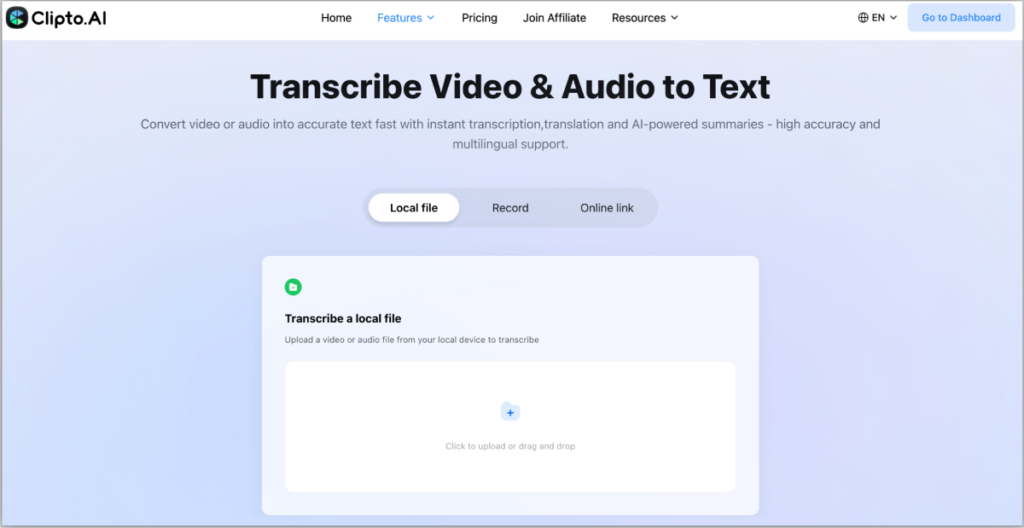
Step 1: Upload a Video File or Paste a Video Link to Convert
Start by uploading a local video or audio file, or paste a supported online video link into Clipto video transcription tool. Suitable for YouTube videos, course recordings, interviews, meetings, webinars and podcasts.
Step 2: Generate the Structured Video Transcript
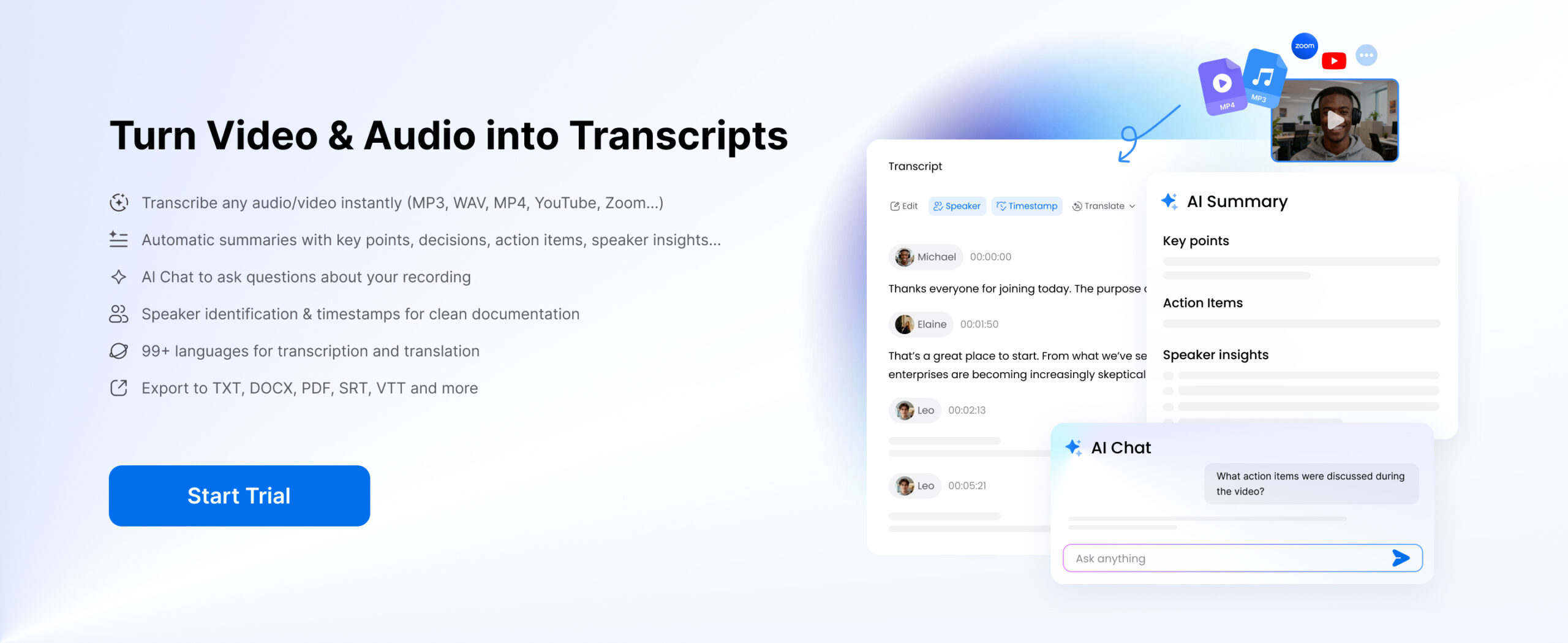
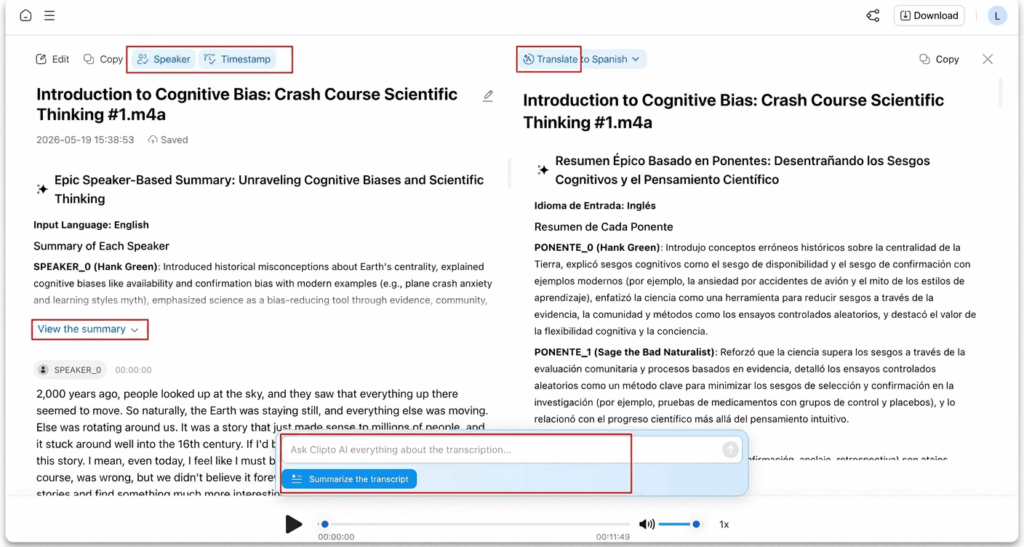
Once the file or link is added, Clipto provides the transcription of verbal content as text. Timestamps and speaker labels can be added to the transcript, which is helpful when multiple people are speaking in the video or when you want to go back to a particular point in the video.
In addition, you can translate the transcript into other languages, making your content accessible to a global audience.
NOTE:
Summarize Video
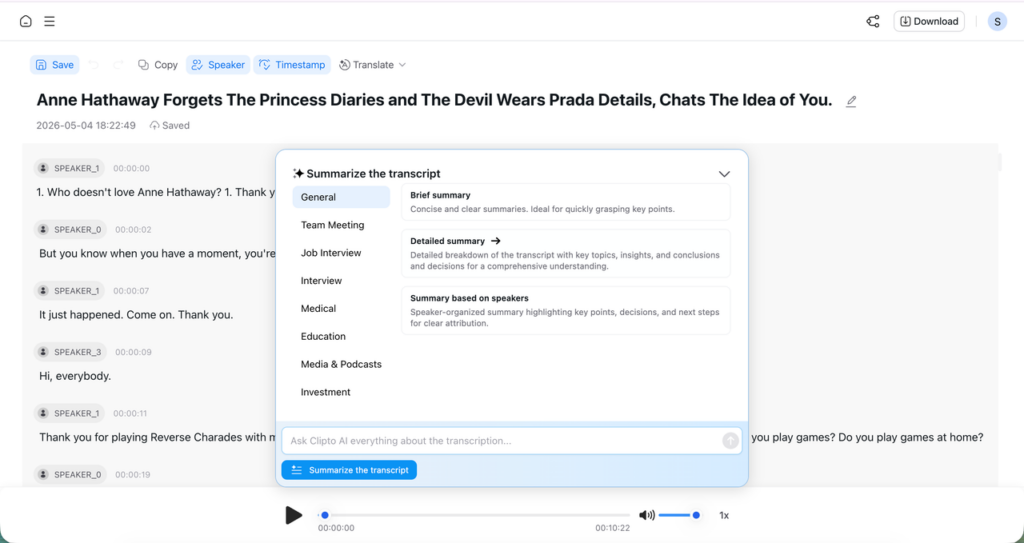
After you convert video to text, Clipto.AI can automatically generate AI-powered summaries from your transcript. It identifies key topics, important insights and action points, helping you quickly understand long videos without reading every word. This is especially useful for content creators, researchers, students and business professionals who need information fast.
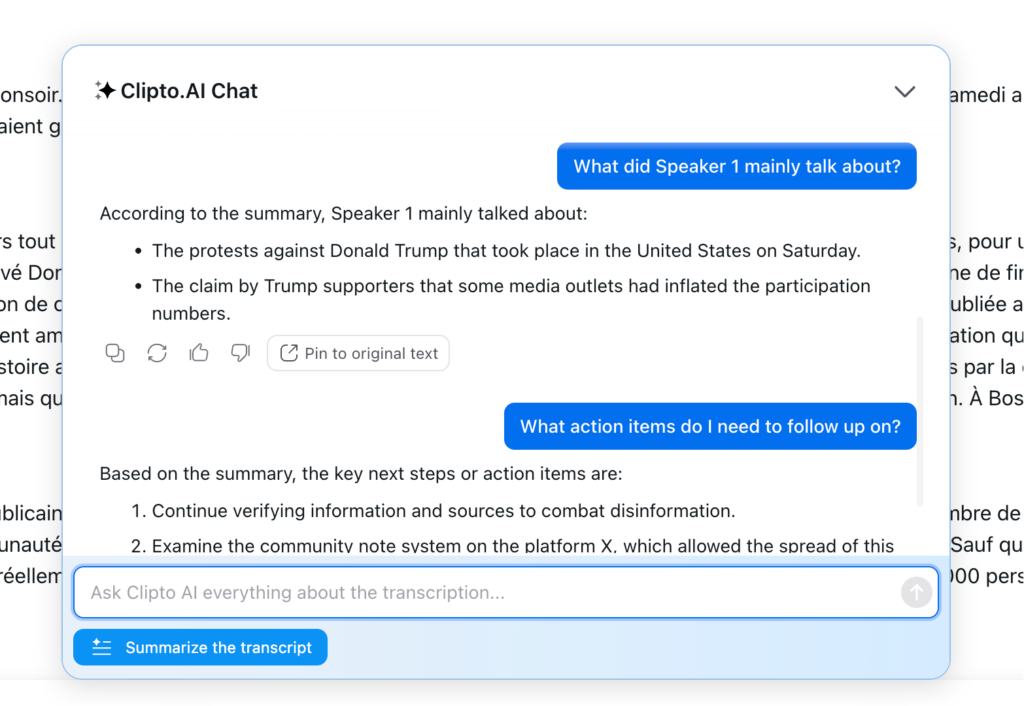
AI Chat with Video Transcripts
Once you convert video to text, you can chat with your transcript using Clipto’s AI Chat feature. Ask questions about any part of the video and receive instant, context-aware answers. Instead of rewatching lengthy videos or manually scanning transcripts, AI Chat helps you locate specific information, extract knowledge and discover insights in seconds.
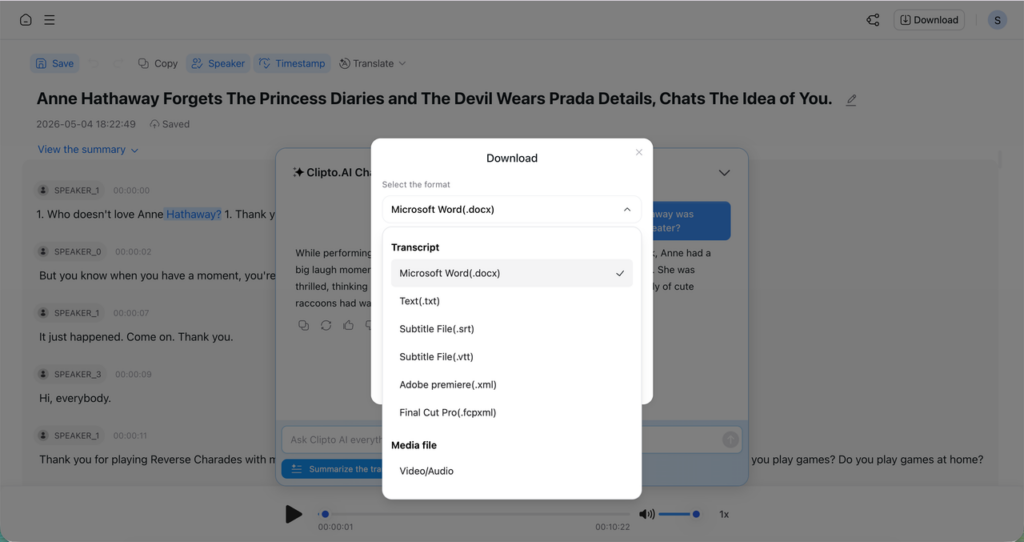
Step 3: Export or Reuse the Video Text
Finally, export the transcript, summary or subtitles in formats such as TXT, DOCX, SRT, or VTT. You can also reuse the content for blog posts, SEO outlines, meeting notes, study materials, social posts or knowledge base content.
Conclusion
To convert video to text is only the starting point, the real value comes from turning transcripts into structured, usable content. When you organize information, extract insights and reuse it across formats, one video can quickly become blog posts, summaries, notes, and more.
If you want to move beyond basic transcription and actually use your content, start building a smarter workflow today. Try Clipto.AI to convert video to text, structure it automatically, and turn it into actionable content in minutes.
FAQ
1. Is there a way to download videos without signing up?
Yes, there are video transcription services out there that will let you transcribe a video without signing up, but they will have a limit to what they can do, such as processing speed, file length, or export options. While they are helpful for small videos or when you need a more organized output, they might not be suitable for longer videos or when you need something more powerful.
2. What are the key features of the AI video captions you can expect from these tools?
When the voice is clear and easy to understand and the speaker is not hard to understand, most YouTube video transcription services can provide a pretty high level of accuracy; in the range of 95-99%. This can be affected by background noise, multiple speakers, technical or accented vocabulary, however, but in some cases, manual editing is still needed.
3. Do you have a free option to convert any video to text for videos longer than an hour?
Some tools offer to convert video to text free of charge, but typically have limits on how long the video can be or how many videos can be processed in a given period of time, particularly if the video is greater than one hour in length. If your content is longer such as a webinar, course or interview, it is best to use the tools that can support longer upload and stable processing without interruptions.
4. Can I transcribe the video to text online and edit it later?
Indeed, most of the online video to text conversion tools have inbuilt video editors. Before exporting, they can view the transcript, correct any mistakes, modify the formatting and rearrange sections – useful for readability and preparing for reuse.
5. How to convert a transcript to a blog or SEO content?
Once the video has been turned into text, you can restructure the text by adding headings, summarizing, and adding key points. This allows it to be converted into an easy-to-read, search engine-friendly blog post that is easy to read and well organized. The tone can also be adjusted and examples can be included to make it more interesting.