Need to convert PDF to Word without paying? A free PDF to Word converter lets you turn PDF files into editable Word documents quickly and easily. In this guide, we’ll compare the 5 best PDF to Word converters, including Microsoft Word, Adobe, Smallpdf, iLovePDF, and PDFAid. You’ll also learn how to convert PDF to Word for free using Microsoft Word or an online converter.
Part 1. 5 Best Free PDF to Word Converters
Choosing the right PDF to Word converter depends on your needs, whether you want to edit documents offline, preserve the original formatting, or convert files directly in your browser. Here are five popular tools to help you convert PDF files into editable Word documents for free.
1. Free PDF to Word Converter – Microsoft Word
Microsoft Word is a convenient option if you already have it installed on your computer. You can open a PDF directly in Word, and the software will convert it to an editable document. This works best with PDF that mainly contains text, although complex layouts, tables, and graphics may not look exactly like the original.
Pros:
- Convert PDF without using a separate online tool.
- Edit text and formatting directly in Word.
- Suitable for text-based documents.
Cons:
- Requires a compatible version of Microsoft Word.
- Conversion may change the original layout.
- Some features require a paid Microsoft 365 subscription.
2. Free PDF to Word Converter – Adobe
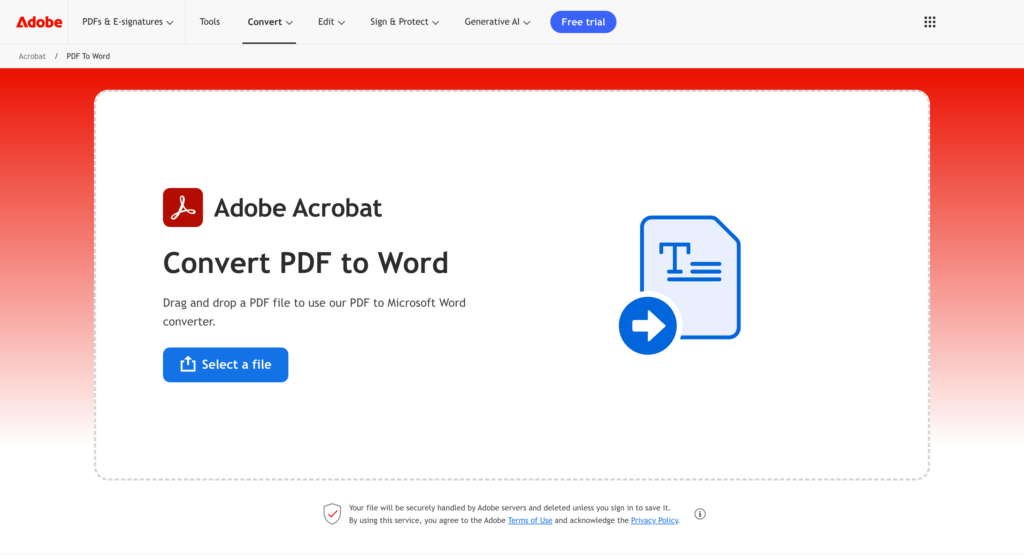
Adobe Acrobat offers PDF-to-Word conversion with a focus on document quality and formatting. You can use its online tools to convert PDF to editable Word, making it useful for documents with tables, images, and more complex layouts. However, downloading the converted file or accessing the full conversion feature may require a paid subscription or trial, depending on the tool and plan.
Pros:
- Designed to preserve document formatting.
- Supports PDF editing and other document management features.
- Available through web and desktop applications.
Cons:
- Full PDF-to-Word conversion features may require payment.
- Advanced features can be more than casual users need.
3. Free PDF to Word Converter – Smallpdf
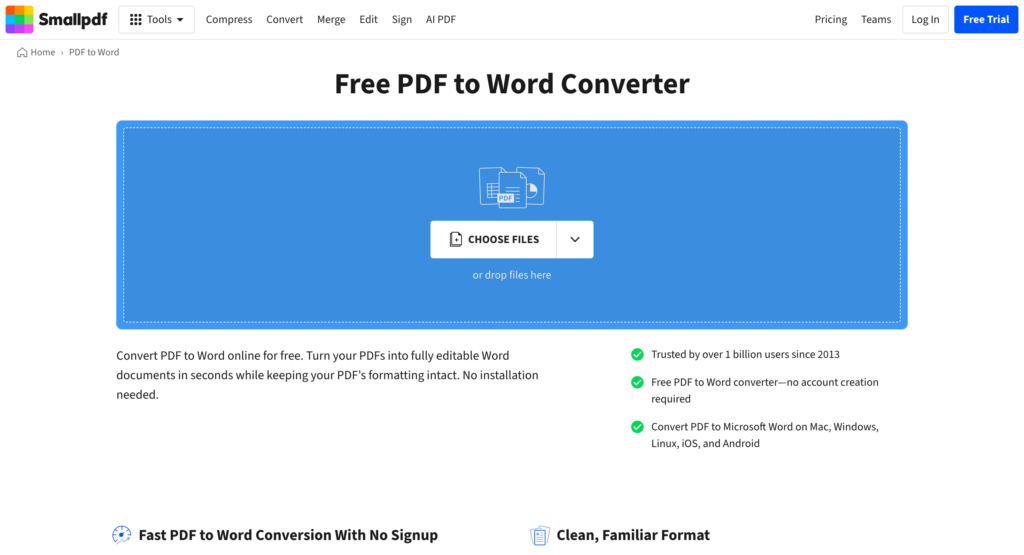
Smallpdf is a browser-based PDF converter that lets you upload PDF and convert it to Word document online without installing desktop software. Its simple interface makes it a good choice for quick conversions. Free usage may be subject to daily limits, and OCR for scanned PDF may require a Pro plan.
Pros:
- Easy to use on different devices.
- No desktop installation required.
- Offers additional PDF tools, including compression and merging.
Cons:
- Free conversions may be limited.
- OCR and some advanced features require a paid plan.
- Requires uploading your document to an online service.
4. Free PDF to Word Converter – iLovePDF
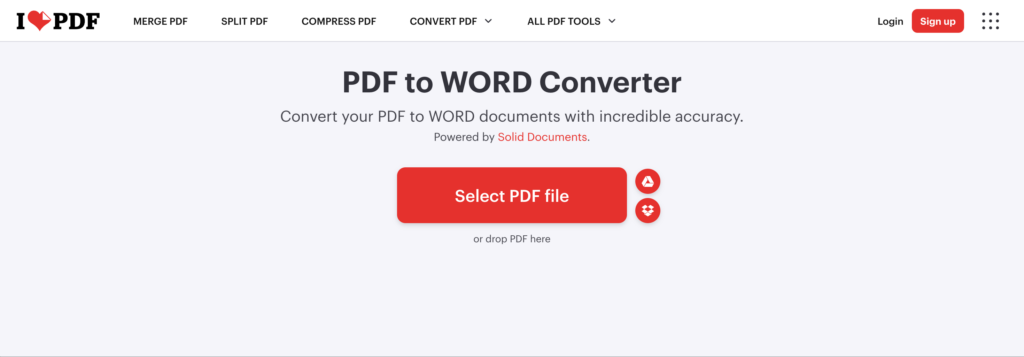
iLovePDF is an online PDF toolkit that includes a PDF-to-Word converter. We could also merge, split, compress, and edit PDF files. It is a practical option for users who want to convert documents quickly online. Some features and usage limits depend on the plan, and converting scanned PDF into editable text may require OCR.
Pros:
- Straightforward conversion process.
- Includes multiple PDF management tools.
- Works online without installing desktop software.
Cons:
- Free usage may have task or file-size restrictions.
- Advanced features may require a premium plan.
- Online conversion requires uploading files.
5. Free PDF to Word Converter – Sejda
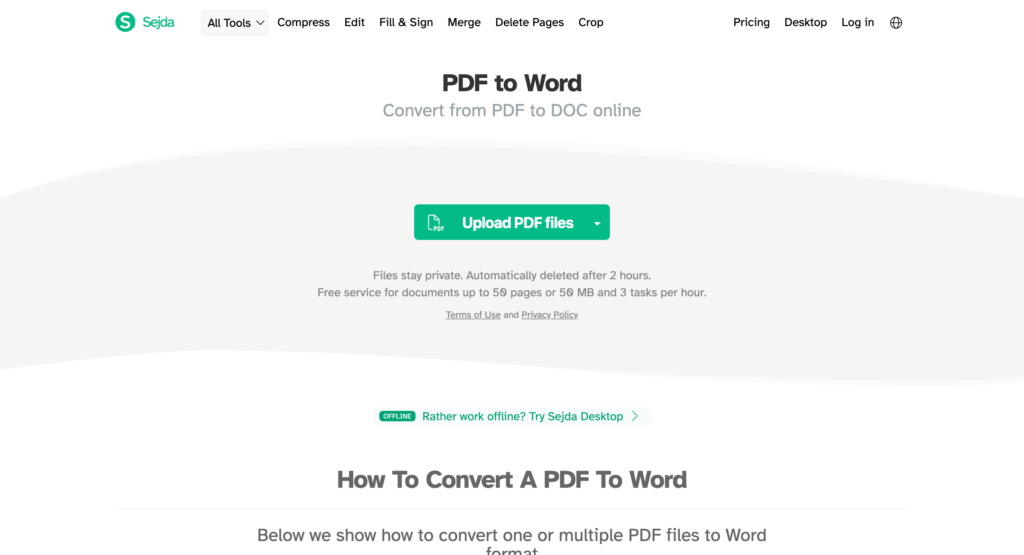
Sejda is an online PDF tool that allows users to convert PDF files into editable Word documents directly in their browser. It is a convenient option if you want to convert files without installing desktop software. This PDF to Word approach also offers other PDF tools for editing, merging, splitting, and compressing documents.
Pros:
- Simple browser-based PDF to Word conversion.
- No desktop software installation required.
- Includes additional PDF editing and management tools.
Cons:
- Free usage is subject to daily task and file-size limits.
- Some features may require a paid plan.
- Online conversion requires uploading your files, so check the privacy policy before processing sensitive documents.
Part 2. How to convert PDF to Word for Free
You can change PDF to Word for free using Microsoft Word or a free online PDF converter. The best method depends on whether you prefer to work offline or convert files directly online. Follow the steps below to turn your PDF into an editable Word document.
1. How to Convert PDF to Word with Microsoft Word
Microsoft Word allows you to open a PDF and convert it to an editable document without using a separate converter. This method works best for PDF that mainly contains text.
Step 1. Open Microsoft Word
Launch Microsoft Word on your computer, click File > Open and select the PDF you want to convert.
Step 2. Confirm the conversion
Word will display a message explaining that it will convert your PDF into an editable Word document. Click OK to continue.
Step 3. Edit your document
Once the PDF opens in Word, you can edit the text, update the formatting, and reuse the content as needed.
Step 4. Save as a Word document
Go to File > Save As, choose the Word Document (.docx) format, and save your file. In this way, we finish turning PDF to Word.
Note: Microsoft Word may change the original formatting during conversion, especially for PDF containing complex layouts, tables, or graphics. You also need a compatible version of Word with access to this feature.
2. How to Convert PDF to Word with Free Online Converter
A free online PDF to Word converter is a convenient option if you don’t want to install software. Most online tools let you upload PDF, convert it to Word, and download the resulting DOCX file directly from your browser.
Step 1. Choose an online PDF to Word converter
Open a tool such as Smallpdf, iLovePDF, or Adobe Acrobat’s online PDF converter.
Step 2. Upload your PDF
Click the upload or file selection button and choose the PDF you want to convert from your computer.
Step 3. Turn PDF to Word
Select the PDF to Word conversion option and start the process. If your PDF contains scanned pages, check whether the tool supports optical character recognition (OCR), which can help turn scanned text into editable content.
Step 4. Download your Word
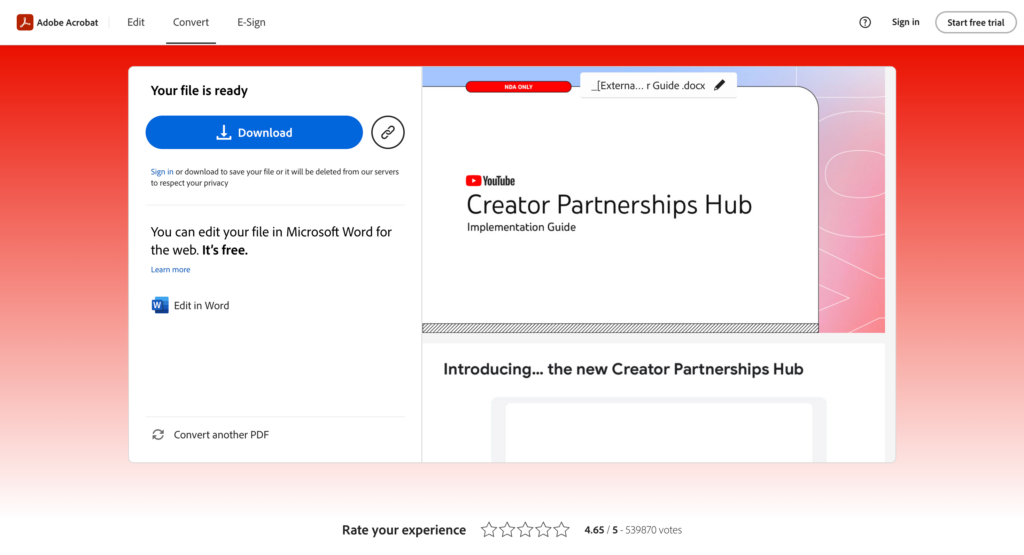
When the conversion is complete, download the resulting Word file, open it in Microsoft Word or another compatible editor, and make any necessary changes.
Note: Free online converters may limit the number of conversions, file sizes, or access to advanced features. Since you need to upload your document, avoid using online services for sensitive files unless their privacy and data-handling policies meet your requirements.
Conclusion
Converting PDF to Word makes it easier to edit documents, update content, and reuse information. Whether you use Microsoft Word or a free online PDF to Word converter like Adobe Acrobat, Smallpdf, iLovePDF, or PDFAid, choose the tool that best fits your needs. For simple text-based PDF, Microsoft Word is a convenient option, while online converters are useful for quick conversions without installing software. Always check the formatting of your converted document to ensure everything looks right before using or sharing it.
FAQs
1. What Is OCR and How to Convert PDF to Word Using OCR?
OCR (Optical Character Recognition) recognizes text in scanned PDFs and images, making it editable. To convert a scanned PDF to Word, use a converter that supports OCR, upload your file, and download the converted document.
2. How to Convert PDF to Word Without Losing Formatting?
Use a reliable PDF converter, such as Adobe Acrobat, to help preserve the original layout, fonts, and images. Always review the converted Word document, as some formatting changes may occur.
3. Can I Convert PDF to Word for Free Without Installing Software?
Yes. Online tools like Smallpdf, iLovePDF, and Sejda let you convert PDFs to Word in your browser. Free usage limits may apply.