Want to transcribe video to captions quickly and accurately? With AI-powered tools, you can easily convert video speech into text, generate captions with timestamps, and export subtitles in formats like SRT or VTT. Whether you’re working with YouTube videos, tutorials, interviews, or social media content, this guide introduces 5 best tools to transcribe video to captions online or locally, including free options, and shows you how to get started step by step.
Part 1. 5 Best Tools to Transcribe Video to Captions
Looking for an easy way to transcribe video to captions? Many AI-powered tools can automatically convert video to text, generate captions with timestamps, and export subtitles in various formats. Below are 5 of the best tools to transcribe video to captions online or locally, including free and paid options, to help you find the right solution for your needs.
1. Transcribe Video to Captions with Clipto
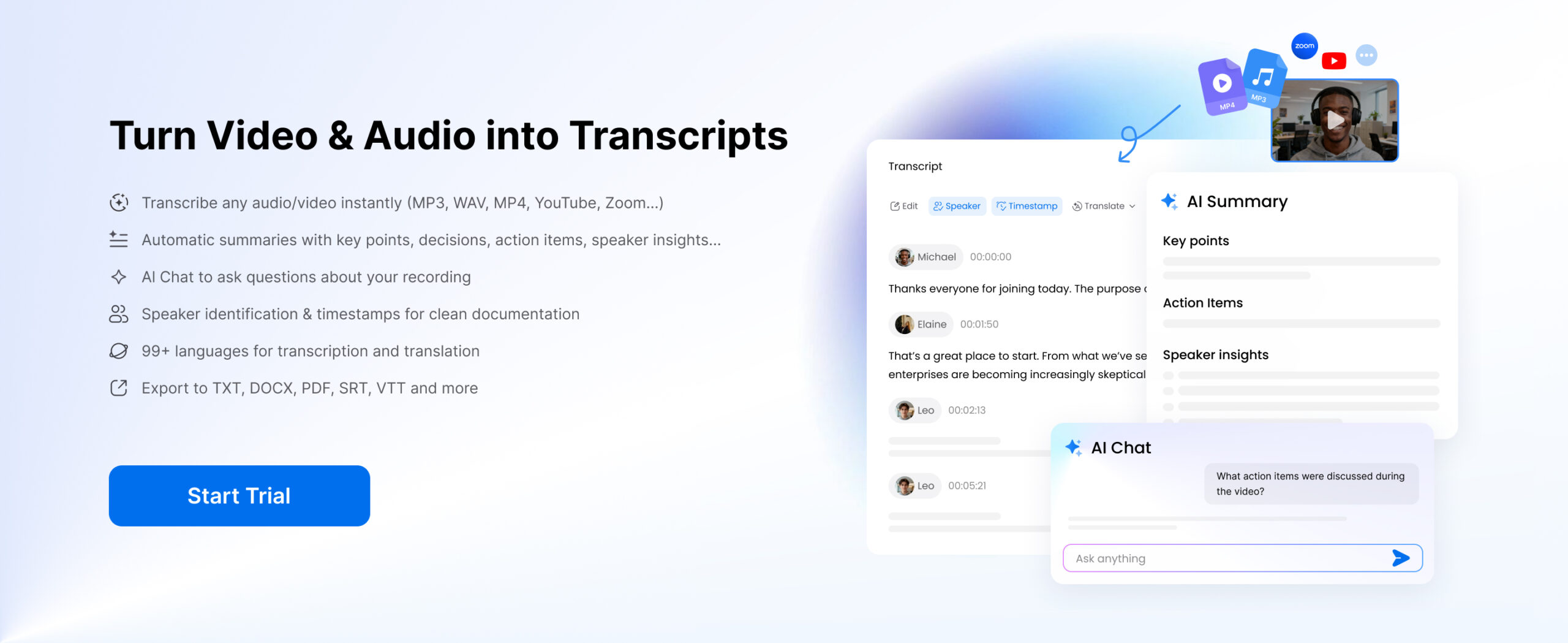
Clipto video transcription tool lets you transcribe video to captions quickly and accurately. You can upload video files or paste online video links to generate captions, making it ideal for YouTube videos, interviews, tutorials, podcast and social media content. Clipto offers both online and local transcription options, so you can choose the one that best fits your needs.
Key Features:
- AI-Powered Transcription: Transcribe video to captions with up to 99% accuracy.
- Files & Online Links: Generate captions from uploaded video files or online video URLs.
- 99+ Languages: Transcribe and translate videos in multiple languages.
- Timestamps & Speaker Identification: Automatically add timestamps and identify different speakers.
- Multiple Export Formats: Export captions and transcripts as SRT, VTT, TXT, DOCX, and more.
- AI Summary & Chat: Summarize video content and ask questions about your transcripts.
- Available on Web, Desktop & Mobile: Transcribe videos to text across multiple devices, including Web, Mac, Windows, iOS, and Android.
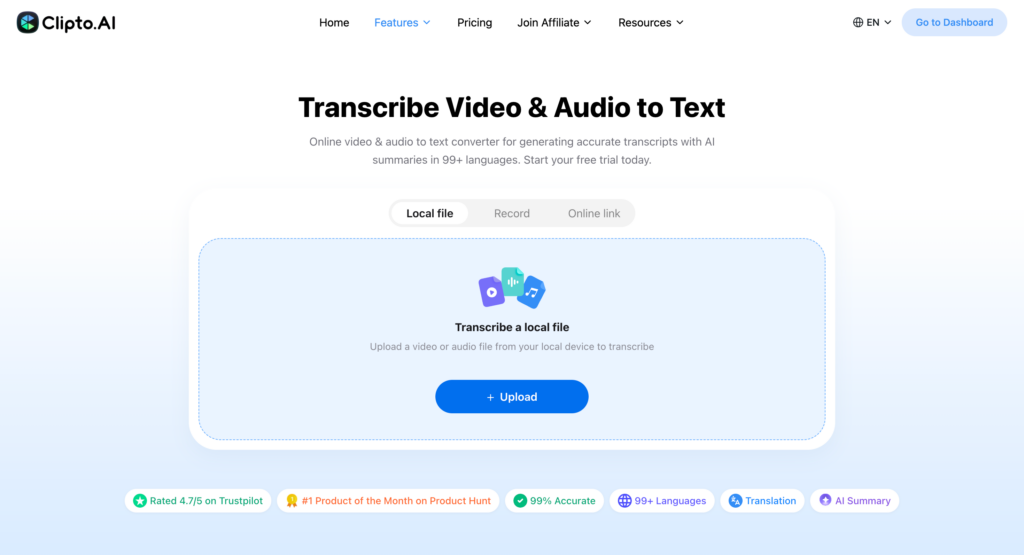
Note: For users who prefer to transcribe videos locally without uploading files to the cloud, Clipto also offers a Mac and Windows desktop app with offline transcription to keep your content private and secure.
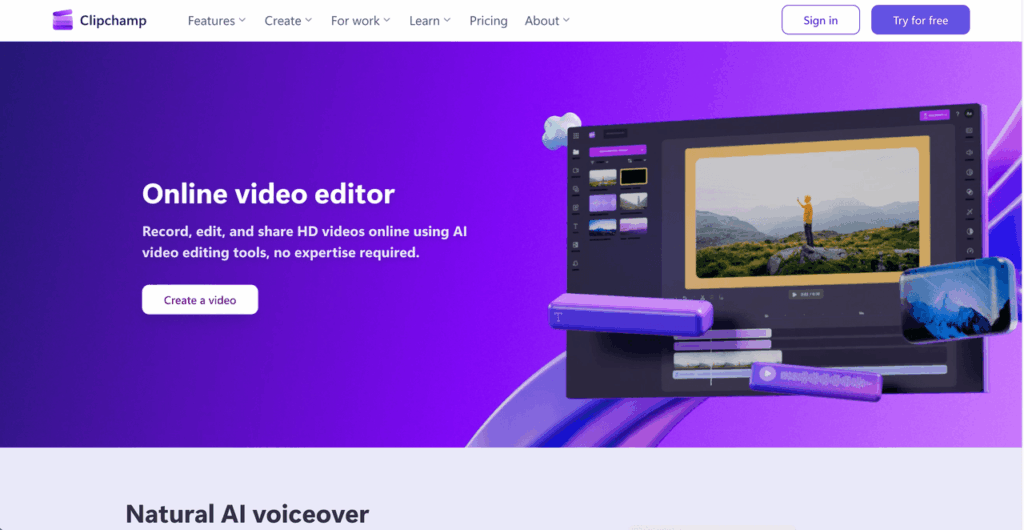
2. Transcribe Video to Captions with Clipchamp
With Microsoft Clipchamp, you can get AI video transcription free of charge and download captions as an SRT file. The generated text appears alongside the preview, so you can review it during playback.
Best for: Users who want to transcribe video to captions free and control over their on-screen appearance.
Its caption tools include:
- Automatic captions: Select the spoken language and generate text synchronized with the recording.
- Text correction: Review the wording and replace misspellings while checking the video preview.
- Caption styling: Edit fonts, size, alignment, and colors, and adjust letter spacing or shadows for more readable text.
- SRT exports: Download a timestamped file to your device for uploading subtitles to other platforms, at no extra cost.
Note: You’ll need to import the media or record inside the transcribe video to text tool. The audio must include speech; background noise and unclear pronunciation can still affect recognition.
3. Transcribe Video to Captions with CapCut
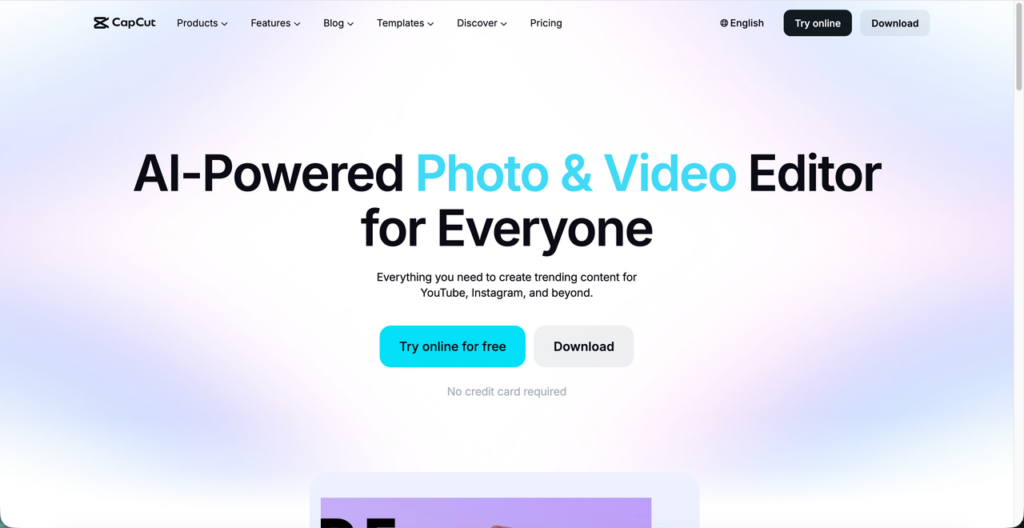
CapCut turns spoken audio into on-screen captions inside its editor. The desktop workflow combines automatic transcription and text styling, with options to export a finished video or a separate subtitle file.
Best for: Short videos for TikTok, Reels, and YouTube Shorts.
Its editing tools include:
- Automatic captions: Choose the spoken language and generate synchronized text from the recording.
- Bilingual subtitles: Enable paired captions to display the original speech and a translation together.
- Keyword highlighting: Highlight key phrases for viewers watching with the sound off.
- Text and styling: Fix names and brand terms, then copy formatting across segments for a consistent appearance.
- Output choices: Export SRT for captions, TXT for notes, or a video with subtitles burned in.
Note: Certain advanced tools and export settings may require a paid subscription. Features aren’t identical across app versions, so check the available formats before exporting.
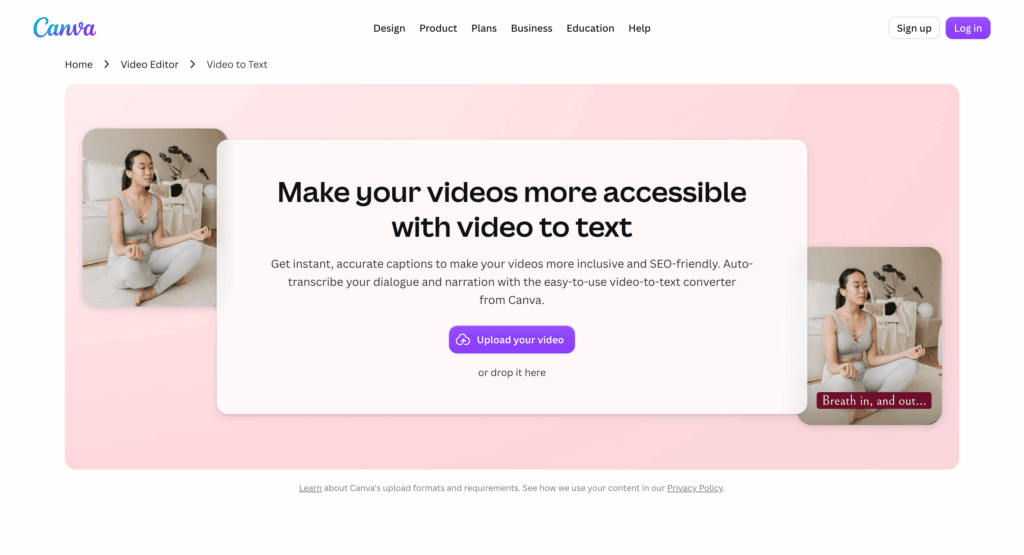
4. Transcribe Video to Captions with Canva
Canva is an online video editing and design tool that lets you transcribe video to captions automatically using AI. Simply upload your video, generate captions, and customize their fonts, colors, and styles, making it ideal for creating engaging social media videos.
Best for: Creating visually appealing captions for TikTok, Instagram Reels, and YouTube Shorts.
Its editing tools include:
- Automatic captions: Generate captions from video and synchronize them with the video.
- Caption customization: Adjust fonts, colors, sizes, and styles to match your video.
- Easy text editing: Review and correct generated captions directly in the editor.
- Video editing: Trim, crop, and enhance videos while adding captions.
- Video export: Download videos with captions included, ready to share on social media.
Note: Some advanced editing features may require a Canva Pro subscription.
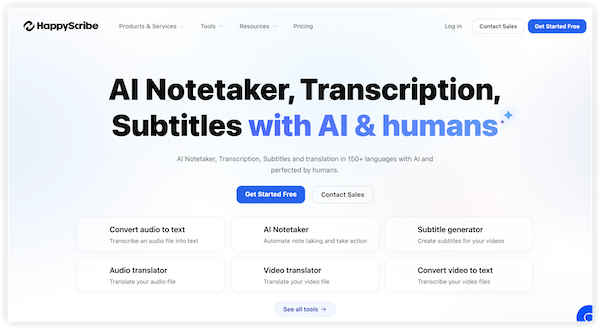
5. Transcribe Video to Captions with HappyScribe
HappyScribe is an AI-powered transcription and subtitle generator that helps you transcribe video to captions quickly and accurately. You can upload videos, generate synchronized subtitles, and translate captions into multiple languages, making it ideal for multilingual content, interviews, and educational videos.
Best for: Multilingual video transcription, subtitle translation, and professional caption editing.
Its editing tools include:
- Automatic captions: Convert video to text with synchronized timestamps.
- Subtitle translation: Translate captions into multiple languages to reach a global audience.
- Subtitle timing: Adjust subtitle start and end times for better synchronization.
- Text and styling: Edit caption text and customize subtitle fonts and formatting.
- Output choices: Export captions in SRT, VTT, TXT, or as videos with burned-in subtitles.
Note: Some advanced features, translation options, and export formats require a paid subscription.
Part 2. How to Transcribe Video to Captions
In this section, we’ll use Clipto Video Transcriber as an example to show you how to transcribe video to captions online, whether you have a video file saved on your device or a video link from YouTube, TikTok or other supported platforms. Follow the steps below to generate accurate captions in minutes.
1. How to Transcribe Video to Captions from a File
Step 1: Upload Your Video
Visit Clipto Video Transcription and upload the video file you want to transcribe.
Step 2: Generate Video Captions
Select the video language and start transcription. Clipto will automatically transcribe your video to text with timestamps and speaker identification.
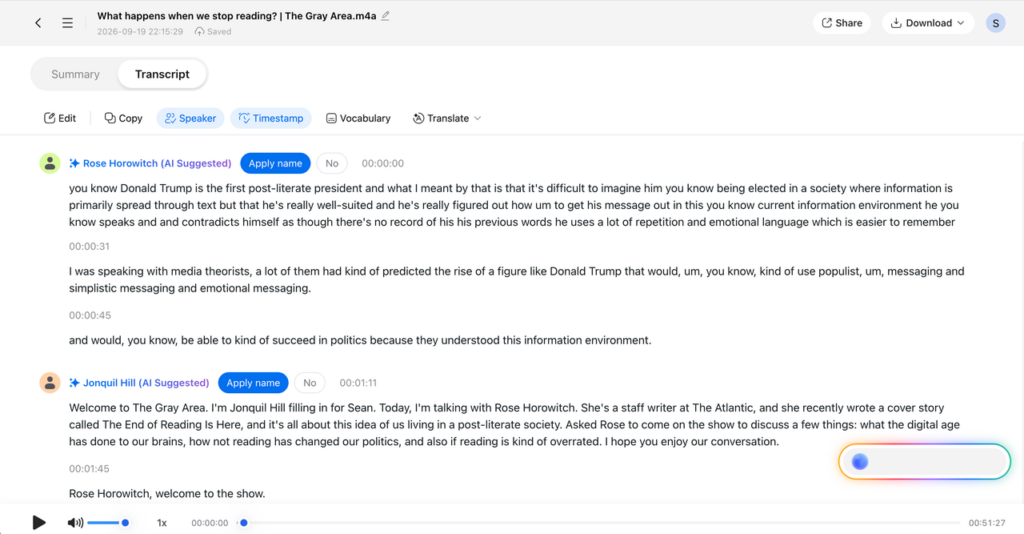
Step 3: Edit and Export Captions
Review and edit the generated transcript, then export your captions in SRT or VTT format for use on YouTube, social media, or video editing software.
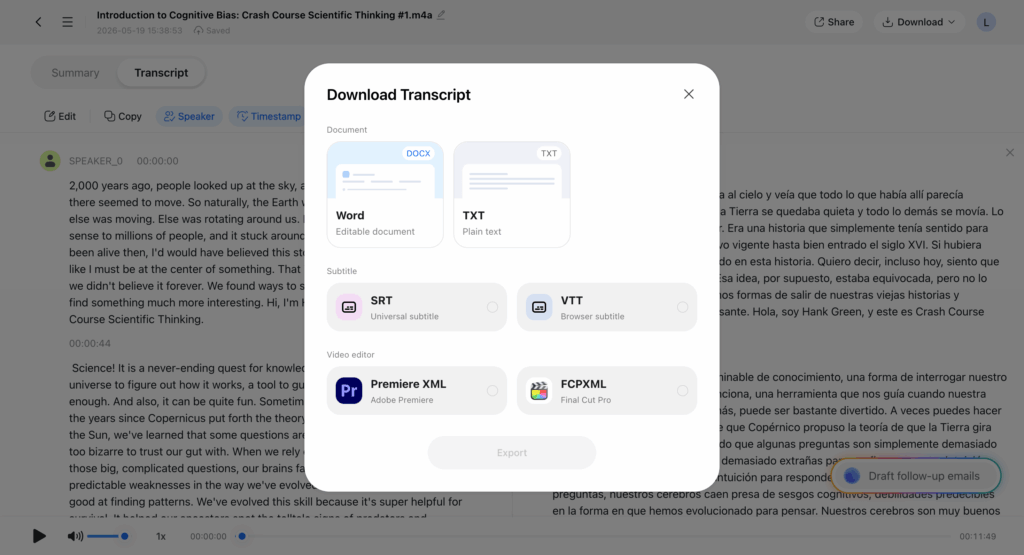
2. How to Transcribe a Video Link or YouTube Video to Captions
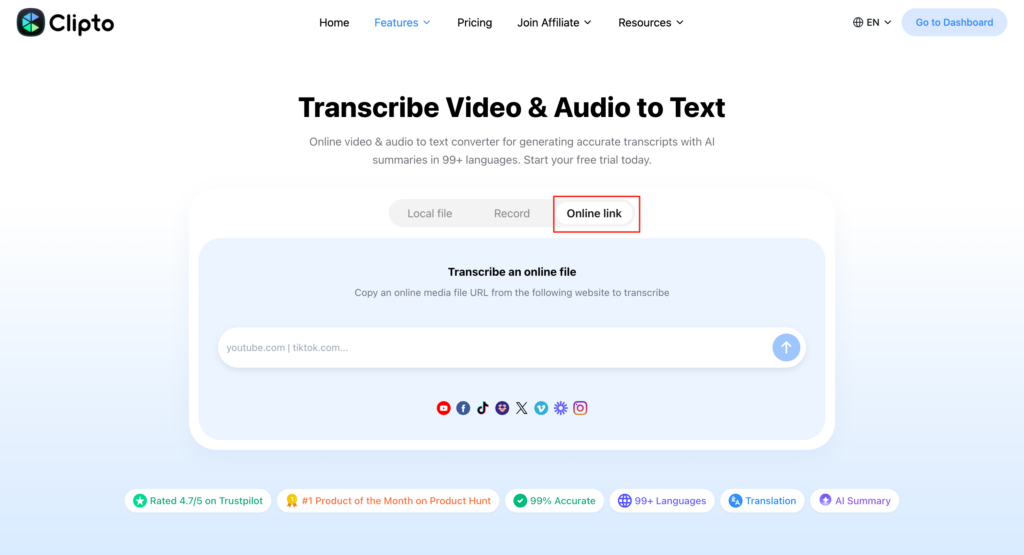
Step 1: Copy and Paste the Video Link
Copy the URL of the YouTube video or another supported online video and paste it into Clipto Video Transcription.
Step 2: Transcribe Video Link to Text
Clipto will automatically convert the online video or YouTube to text with timestamps and speaker identification.
Step 3: Download Video Captions
Review and edit the transcript, then download the captions in SRT or VTT format. You can also export the transcript as TXT, DOCX, or PDF.
Part 3. Tips for Accurate, Readable Video Captions
Whether you transcribe video to captions online or locally or use desktop software, accuracy and readability are essential. Poor captions can distract viewers or make content difficult to follow. Here are some practical tips to improve caption quality, timing, and formatting.
Reduce Background Noise Before Generating Captions
Clear audio is essential for accurate AI video transcription. If your recording is noisy, consider cleaning it up before you transcribe video to captions. Normalize the volume and reduce background noise to improve speech recognition. For new recordings, use a good microphone, choose a quiet setting, and avoid overlapping speech.
Check Recognition Errors and Missing Sounds
Even the best AI transcription tools can make mistakes. Whether you transcribe video to text online or use offline software, review names, numbers, dates, and technical terms carefully. Correct recurring errors and check caption timing during playback. For better accessibility, include relevant sound cues like [music] or [laughter] when needed.
Break Captions into Readable Lines
When you transcribe video to captions online for free, the generated text may still need formatting adjustments. Keep captions to one or two short lines and break them at natural pauses. Use readable fonts, appropriate text sizes, and high-contrast colors. Position captions within the video’s safe area to avoid overlapping with platform icons or other on-screen elements.
Match the Caption File to Your Platform
After generating captions, choose the right export format for your needs. If you use an AI video transcription free tool to create notes or searchable text, TXT is a convenient option. For synchronized captions, export SRT for YouTube or VTT for compatible web players. If you want captions permanently displayed in the video, choose burned-in subtitles.
Always preview your captions before publishing to ensure the text, timing, and formatting work correctly across different platforms.
Conclusion
With the right tools, you can easily transcribe video to captions quickly and accurately. Whether you’re creating YouTube videos, tutorials, interviews, or social media content, AI-powered transcription tools help you save time, improve accessibility, and make your videos more engaging.
Among these tools, Clipto offers a flexible solution to transcribe video to text online or locally on your computer. With support for video files and online links, 99+ languages, timestamps, and multiple export formats, Clipto makes it easy to generate accurate captions for different needs. Try Clipto to turn your videos into text and captions effortlessly.
FAQs
What Is the Difference Between Captions and Subtitles?
When you transcribe video to captions, the text contains dialogue, speaker identification, and relevant sounds such as music or laughter. Subtitles typically translate spoken words into another language, though versions in the original language are also used.
Can I Generate Captions When a Video Has No Subtitles?
Yes. Existing subtitles aren’t required to transcribe video to captions online. Clipto transcribes the recording’s audio rather than reading a published subtitle track, so the process works even when the video has never been captioned.
Do I Need to Extract the Audio Before Transcribing a Video?
No. Upload the original video to Clipto to transcribe video to text online. Its audio is processed automatically, so you don’t need to extract the sound or convert the file to MP3 first.