Can ChatGPT transcribe audio? Yes, sometimes. It mainly depends on the way you use it: Record Mode, file upload, or an audio model / Whisper setup.
- Quick personal voice memo: Record Mode may be enough.
- Short clip you need to share: try uploading the audio file if uploads are available.
- MP3 or voice memo: clean up the file first, then ask for a verbatim transcript.
- Audio from a video: pull out the audio, or use a tool that handles video transcription.
- Repeatable audio or video work: use Clipto when you need files, subtitles, multilingual transcripts, and exports in one place.
ChatGPT is fine when you only need something quick. The problem starts when transcripts pile up inside different chats. One file is easy. Five files, a video, and a subtitle export are not. Clipto keeps the recording, transcript, summary, and download options together, so you do not have to keep copying text from chat to another tool.
Part 1. Can ChatGPT Transcribe Audio? Features and Limitations
Can ChatGPT transcribe audio today? Sometimes, yes, but it depends on what you mean by “transcribe.”
For a live note, Record Mode may be enough. For an uploaded MP3 or voice memo, ChatGPT only helps if your app and model can read the file. For longer recordings, the audio usually needs to go through a speech-to-text step first. After that, ChatGPT is better at the second half of the job: cleaning rough text, pulling out a summary, and formatting the transcript.
Here are the four paths you will probably run into.
Choose Your Transcription Path
- Record Mode: You record inside ChatGPT. It gives you text and notes to review.
- File upload: You upload an audio file you already have, such as an MP3, voice memo, or short meeting recording. This only works when your ChatGPT setup supports audio uploads.
- Audio models / Whisper: You run the transcription outside the normal chat. This gives you more control, especially with longer files. Then you bring the text back into ChatGPT for cleanup, summaries, or analysis.
- Clipto: You use Clipto when the job is less about one quick note and more about handling files. Audio files, video files, MP3s, subtitles, multilingual transcripts, and exports all stay in one place.
Quick Comparison: Record Mode vs File Upload vs Audio Models vs Clipto
| Option | Best for | Setup | Long files | Exports |
| ChatGPT Record Mode | Quick live notes | Low | Limited by app flow | Mostly copy and paste |
| ChatGPT File Upload | Short supported files | Low to medium | Depends on file support | Mostly copy and paste |
| Audio Models / Whisper | Batch or developer setups | Medium to high | Better if you split files | Flexible |
| Clipto | Audio and video file work | Low | Easier for file-based work | TXT, SRT, VTT, and more |
Record Mode or file upload is enough for a quick draft. It gets annoying when you have long audio, video files, or transcripts you need to download later. That is where Clipto feels easier, because the file, transcript, summary, and export options are already together.
Part 2. How to Use ChatGPT Record Mode to Transcribe Audio
Record Mode is the simplest ChatGPT option when the audio is happening live. You open ChatGPT, press Record, talk, and send the recording when you are done. For a quick meeting recap, brainstorm, or voice memo, that may be all you need. Still, do not treat the first transcript as perfect. Names, numbers, dates, and decisions are the parts I would check first.
Step 1: Open ChatGPT Record Mode
Open the ChatGPT macOS desktop app and look for the Record button near the bottom of the chat. If you do not see it, update the app first. Then check whether your plan or workspace has Record Mode available.
The first time you use it, your Mac may ask for microphone permission. If you also want to capture system audio, you may need to allow that in your settings too.
Step 2: Get Permission Before Recording
Before you hit Record, make sure the people speaking are okay with being recorded. For a work call, do not skip this part. Your company may have its own rules, and local recording laws may also apply.
Step 3: Record Clear Audio
You do not need studio-quality sound, but the audio should be easy to hear. Use a quiet room if you can. Stay close to the mic. Headphones help if there is echo.
If more than one person is speaking, ask people to take turns. When everyone talks over each other, the transcript usually becomes much harder to clean up later.
Step 4: Send, Review, and Edit the Notes
When the recording is finished, stop it and hit Send. ChatGPT will upload the transcript and summary, then show the notes in the chat or attach them to the recording.
Read the notes before you use them anywhere important. Check names, dates, numbers, speaker labels, decisions, owners, due dates, and technical terms. If a sentence sounds too neat or a little off, go back to the audio and check it.
Part 3. Can ChatGPT Transcribe Audio File to Text
Can ChatGPT transcribe audio file to text from an upload? It can, but only when your app, account, and model support audio files.
The file itself matters too. A short, clear MP3 is much easier than a noisy one-hour recording. If the upload does not work, do not keep trying the same file over and over. Use Record Mode for a live note, split the file into smaller parts, try an audio model / Whisper setup, or move the file into Clipto if you need a cleaner file-to-transcript path.
Before uploading, do a little cleanup:
- Use common formats when they are supported, such as MP3, M4A, or WAV.
- Cut long silence at the beginning.
- Split long recordings into Part 1, Part 2, and Part 3.
- Give the file a name you can recognize later, such as Team-Meeting-Part1.mp3.
A few file types need extra care:
- MP3 files: Rename the file clearly, split long recordings, and ask for verbatim text.
- Voice memos: Export the memo first, then upload it if your ChatGPT setup accepts audio files.
- Video audio: Extract the audio first, or use a tool that can transcribe video files directly.
- Different languages: Check names, accents, and technical terms carefully, especially when the audio switches between languages.
Sometimes ChatGPT gives you a summary when you wanted a transcript. Be direct:
“Transcribe this audio file to text verbatim. Do not summarize. Add speaker labels if possible. Mark unclear words as [unclear].”
For one or two files, this is manageable. If you transcribe files all the time, Clipto is easier to keep organized. You can upload, transcribe, review, and export without keeping the transcript buried in a chat thread.
Part 4. What to Check Before Using a ChatGPT Transcript
For a quick draft, ChatGPT usually does the job. The problem is that a transcript can look clean even when a few details are wrong. Before you use it in meeting notes, a report, or a client email, check the parts where small mistakes matter.
It May Summarize Instead of Transcribe
This happens more often than people expect. You ask for a transcript, and ChatGPT gives you a neat summary instead. It may look useful, but it is not the same thing.
Use a very plain prompt:
“Transcribe this audio verbatim. Do not summarize.”
If the answer still feels too short or too polished, try a shorter file. Long audio gives the tool more chances to skip, smooth over, or compress what people actually said.
Speaker Labels Can Be Messy
If you need to know who said what, ChatGPT may not always get it right. It might use “Speaker 1” and “Speaker 2,” mix people up, or leave long blocks without clear turns.
For a personal note, that may be fine. For an interview, meeting recap, or quote you plan to reuse, spend a few minutes fixing the labels. Replace generic names with real names when you know them. Break long blocks into shorter turns. Mark unclear lines instead of guessing.
Long Audio Can Be Hard to Manage
A short voice memo is easy. A one-hour call is not.
Long recordings often need to be split into a few shorter parts before transcription. Smaller files are less painful to upload, easier to review, and easier to fix when one section goes wrong.
The other problem is finding the transcript later. If every recording ends up in a different chat, old notes can disappear fast. Looking for one quote, comparing two meetings, or exporting a clean copy later can become a hassle.
Accuracy Still Needs Review
Real recordings are messy. You may hear accents, background noise, people talking over each other, side comments, or technical terms. That is where mistakes can slip in.
Always check names, dates, numbers, quotes, decisions, and any sentence that sounds strange. For legal, medical, HR, finance, or client-sensitive recordings, do not rely on the text alone. Go back to the original audio for the important moments. A transcript can look confident and still be wrong.
Part 5. Best Alternative to ChatGPT for Audio and Video Transcription: Clipto
If it is just a short clip, ChatGPT can help. The trouble starts with long audio files, video files, video online or anything you need to review, reuse, or export later.
For that kind of work, Clipto is easier to manage. The file, transcript, summary, speaker labels, language options, and export formats stay together, so you are not jumping between a chat, a media file, and a separate subtitle tool. It also helps when you work with more than one language, or when you do not want to hunt through old chats every time you need a past transcript.
Step 1: Upload or Import Your Audio/Video File
Add audio and video files to Clipto, including MP3, MP4, WAV, and MOV. If the content comes from online media, use the supported import options when available, so you do not always need to download the source file first.
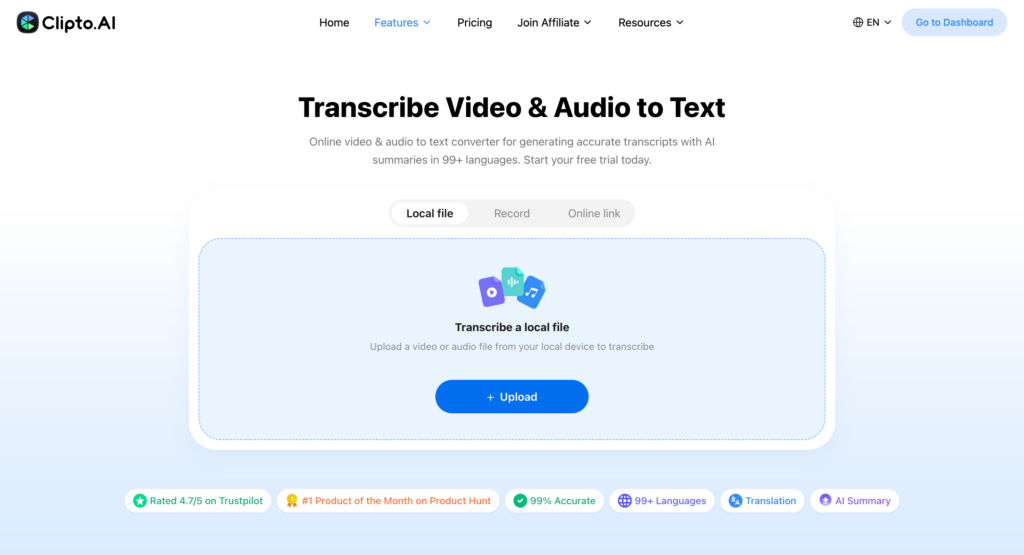
Step 2: Generate the Transcript
Choose the language if needed, then generate the transcript. For longer files, speaker identification and timestamps make review much less painful. You can skim, search, and go back to the right part of the recording instead of scrolling through a wall of text.
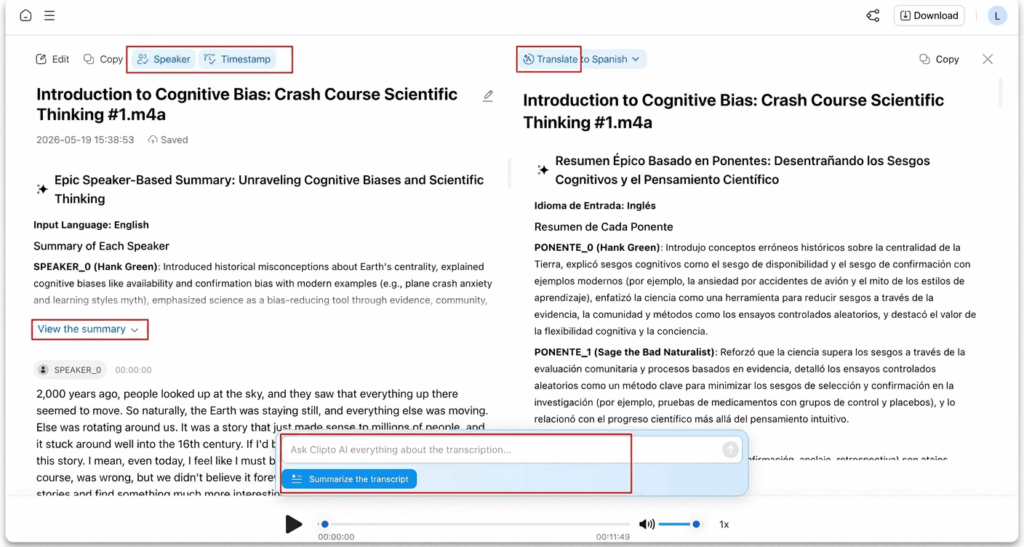
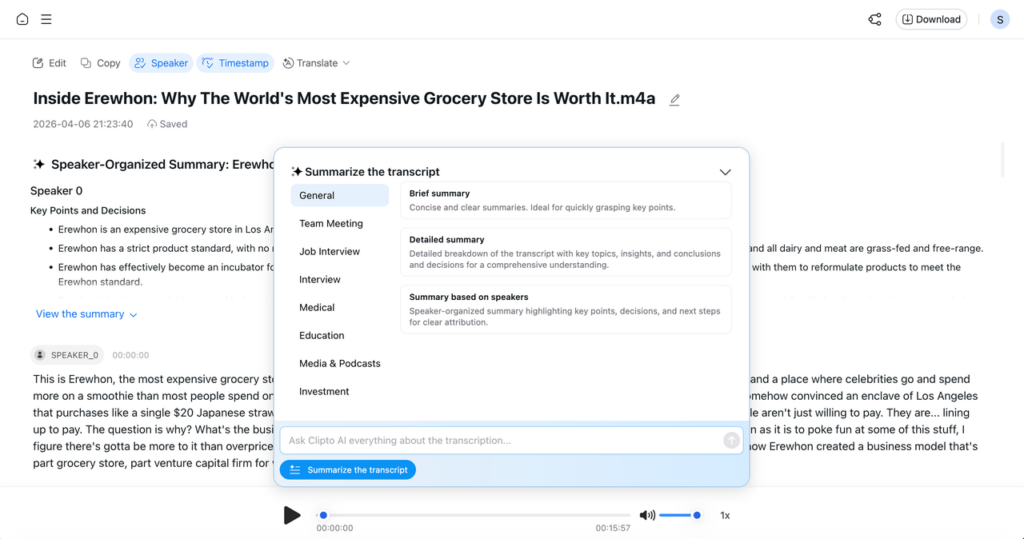
Step 3: Create AI Summaries or Chat with Your Transcript
Once your transcript is ready, use AI Summary to instantly generate key points, meeting notes, action items, or content drafts. You can also ask AI Chat questions about the transcript to find specific information, clarify details, or extract insights without reading the entire conversation.r a content draft.
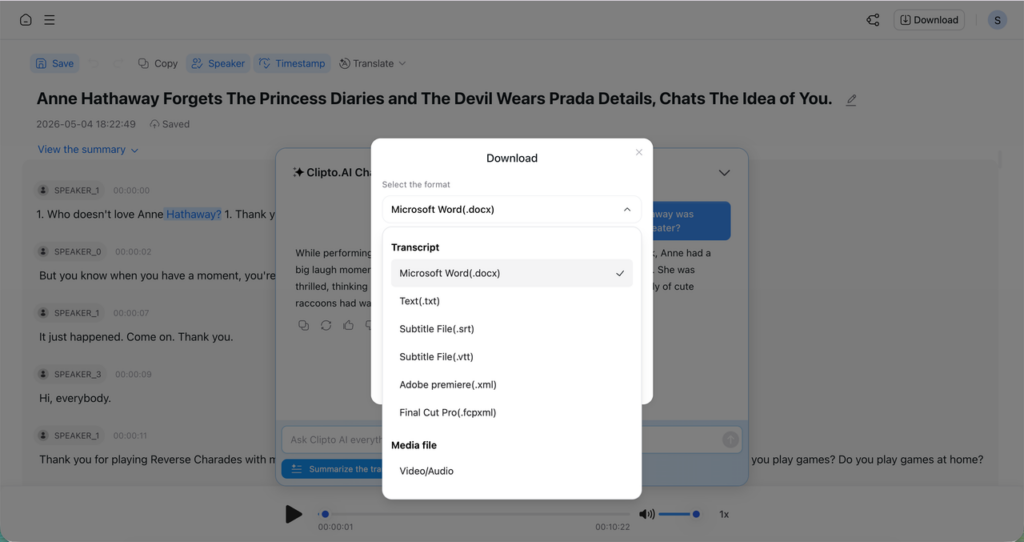
Step 4: Export the Transcript
When you are done, export the transcript in the format you need. TXT works for plain text. SRT or VTT works for subtitles. Other supported formats can be used for editing, sharing, or keeping a copy for later.
If you often move from audio or video to text, this is much easier than uploading one file after another into ChatGPT and copying the result by hand.
Conclusion
So, can ChatGPT transcribe audio? Yes, it can help with quick voice notes, short recordings, and basic transcript cleanup, especially when Record Mode or file upload is available.
But ChatGPT starts to feel limited when you need to transcribe audio from longer recordings, MP3 files, YouTube videos, or other online media. It also falls short if you need subtitles, multilingual transcription, or clean exports. For these workflows, Clipto is the better choice. It lets you transcribe audio and video in one place while keeping the original media, transcript, AI summary, AI chat, and export tools together, making every transcript easier to review, search, and reuse.
FAQs
Can ChatGPT transcribe audio file to text?
Yes, sometimes. ChatGPT can transcribe audio file to text when your app, model, and account support audio upload. For long or noisy files, split the recording first. It is easier to fix three short transcripts than one messy long one.
Can ChatGPT transcribe MP3?
Sometimes. The main issue is not just the MP3 format. The real question is whether your ChatGPT setup can read the uploaded audio. If it can, upload the MP3 and ask for a verbatim transcript. For long MP3 files, trim silence and split the file before you try.
Can ChatGPT transcribe audio from a video?
Not always directly. ChatGPT may work if the video or extracted audio can be uploaded and processed. For regular video work, though, Clipto is usually easier because you can handle the video, transcript, subtitles, and exports in the same place.
Can ChatGPT transcribe audio from voice memo?
Yes, if your setup supports audio upload. Export the voice memo first, then upload the file. If you have many voice memos, Clipto is easier because you can upload, transcribe, review, and export them without turning every memo into a separate chat.
Can ChatGPT transcribe audio in different languages?
Yes, in some setups, but do not skip review. Names, accents, technical terms, and mixed-language sections can still cause mistakes. If the transcript will be shared or published, read those parts against the original audio before using it.
Is ChatGPT audio to text free?
It depends on the feature, app, and plan you use. Some voice features may be available to free users, but file upload, recording features, and usage limits can vary. If you need regular audio or video transcription, compare what your ChatGPT account can actually do with a tool like Clipto.
Can ChatGPT transcribe audio from YouTube?
Not as a simple “paste any YouTube link and transcribe it” setup. Only transcribe content you own or have permission to use. For video files, subtitle exports, or reusable transcripts, Clipto is usually the more practical option.